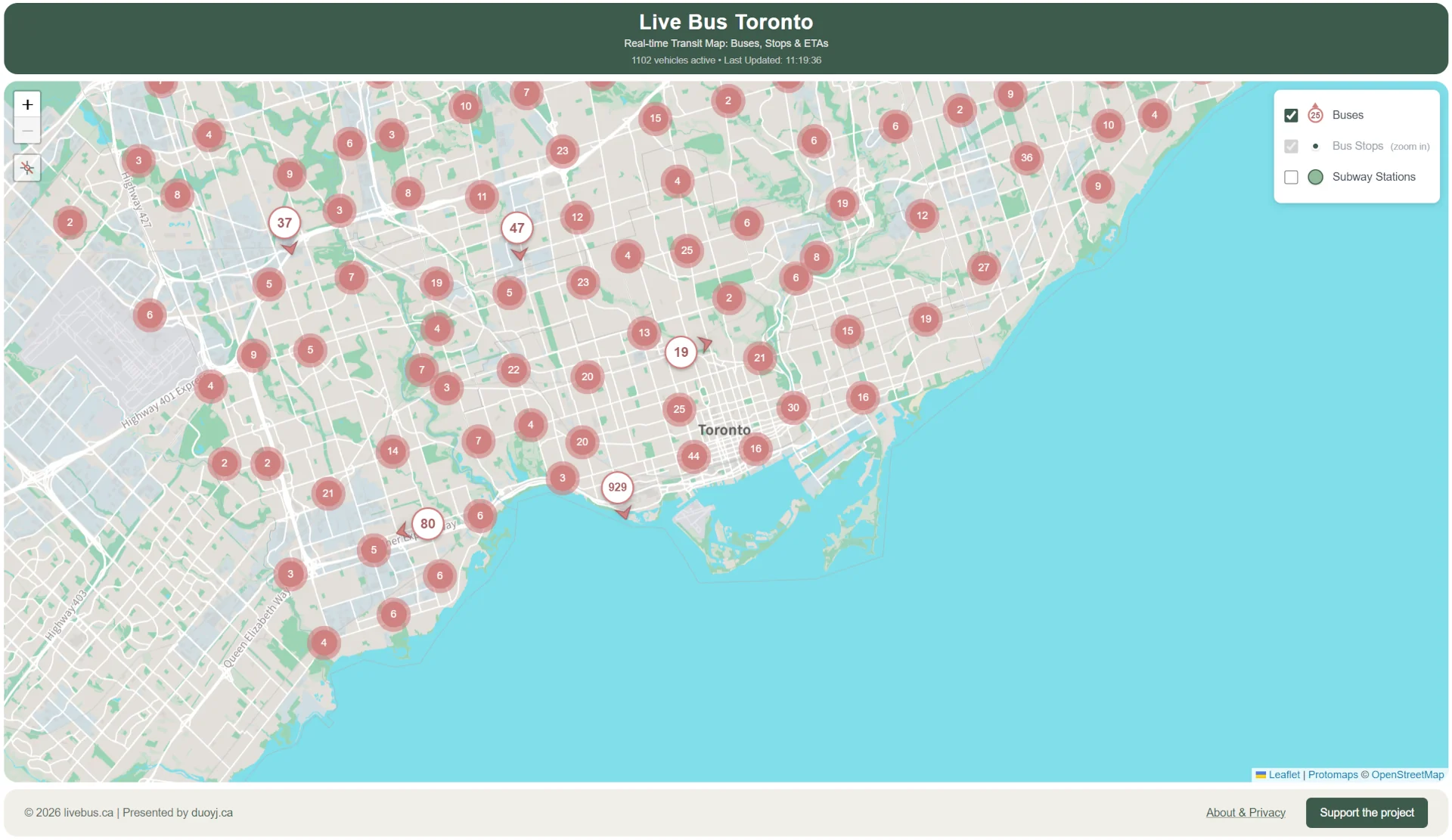
On January 11, 2026, I launched LiveBus, a real-time transit map for Toronto.
I shared it on Xiaohongshu and Reddit's r/toronto after launch. Within 24 hours, LiveBus had nearly 3,000 visits. The Reddit post reached 260,000 views and 1,300 upvotes. A week later, after the launch posts had quieted down, daily traffic was still around 500 visits.
This is a look back at how I built LiveBus, from the first idea to launch day, and what I want to improve next.
1. Origin: Why I built LiveBus
After finishing the 2026 World Cup Visualization Map, I wanted to build something closer to daily life in Toronto.
Last July, a news article caught my attention. University of Toronto PhD student Andrew Ilersich had built TTCmap, which puts TTC subway service changes and disruptions on a real-time interactive map. There are already many real-time transit apps, but TTCmap felt lightweight, practical, and easy to understand. That stayed with me.
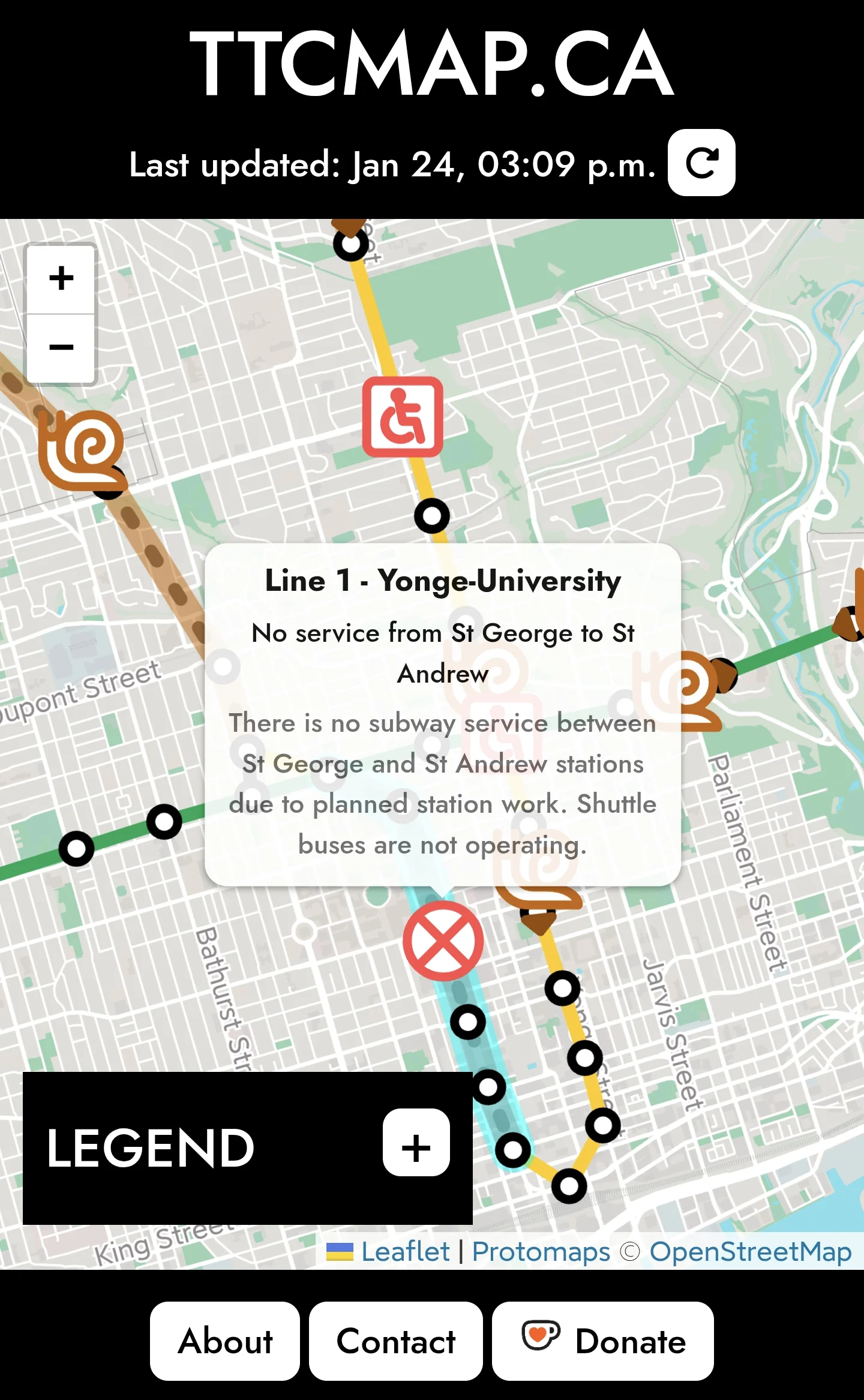
TTCmap focuses on subway service changes and disruptions, and Andrew had mentioned plans to expand to buses and streetcars later.
To avoid building the same thing, I focused on live vehicle locations and ETA predictions instead. TTC does not currently share real-time subway location data, so I started with buses and streetcars. That became LiveBus.
2. Vision and design philosophy
Anyone who rides transit has probably met a ghost bus. You text for arrival times, the app says "5 minutes," and then nothing shows up. LiveBus tries to make that uncertainty easier to judge by putting both the ETA and the vehicle's live location on the same map.
Most real-time transit apps use TTC data or third-party APIs. Many of them can show vehicle locations and stop information. Since the underlying data is often similar, the main product question became presentation. I built LiveBus around three ideas: fast response, clear map display, and low-friction interaction.
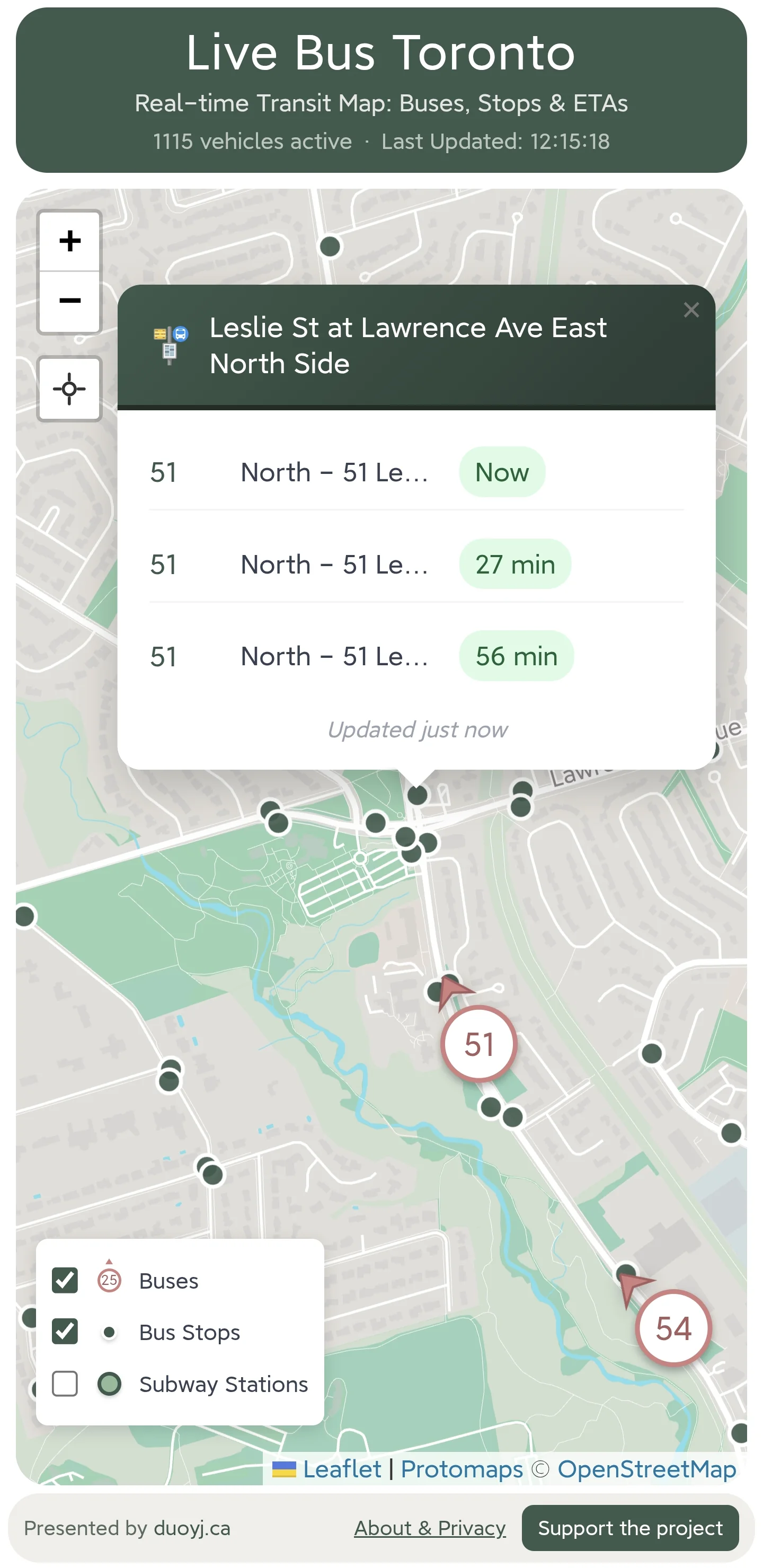
That led to the core experience: a map with live bus and streetcar locations, plus stop ETAs when you click a stop. You can compare what the vehicle is doing with what the stop prediction says, which makes the arrival time easier to trust or question.
The design goal is lightweight, easy to use, and map-first. LiveBus is not trying to solve every transit problem. It answers two questions: "Where's the bus?" and "How long until it gets here?" Open it, glance at the map, make a call, and move on.
I built it as a Progressive Web App (PWA) for the same reason. There is nothing to install. You can open it in a browser, or add it to your home screen for one-tap access.
3. Learning from others: Similar app research
Before writing much code, I looked at the transit apps already available. I focused on real-time transit apps with map interfaces and compared them on four points:
- Live vehicle locations and direction
- Stop ETA
- Multi-route display
- Ease of use
These notes come from normal searches and short hands-on trials. They are my observations, not a full audit of every feature in each app.
3.1 TTC official website
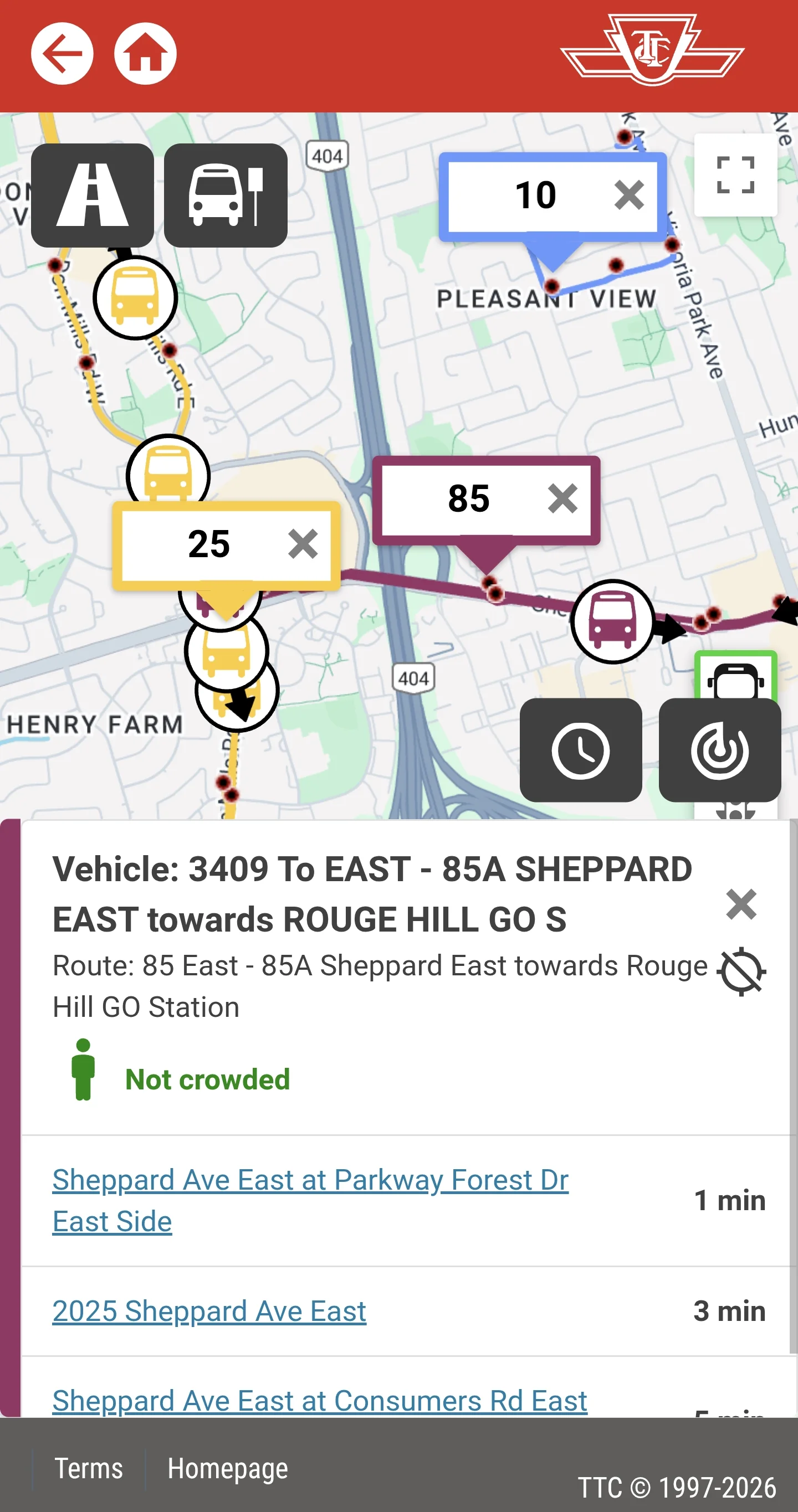
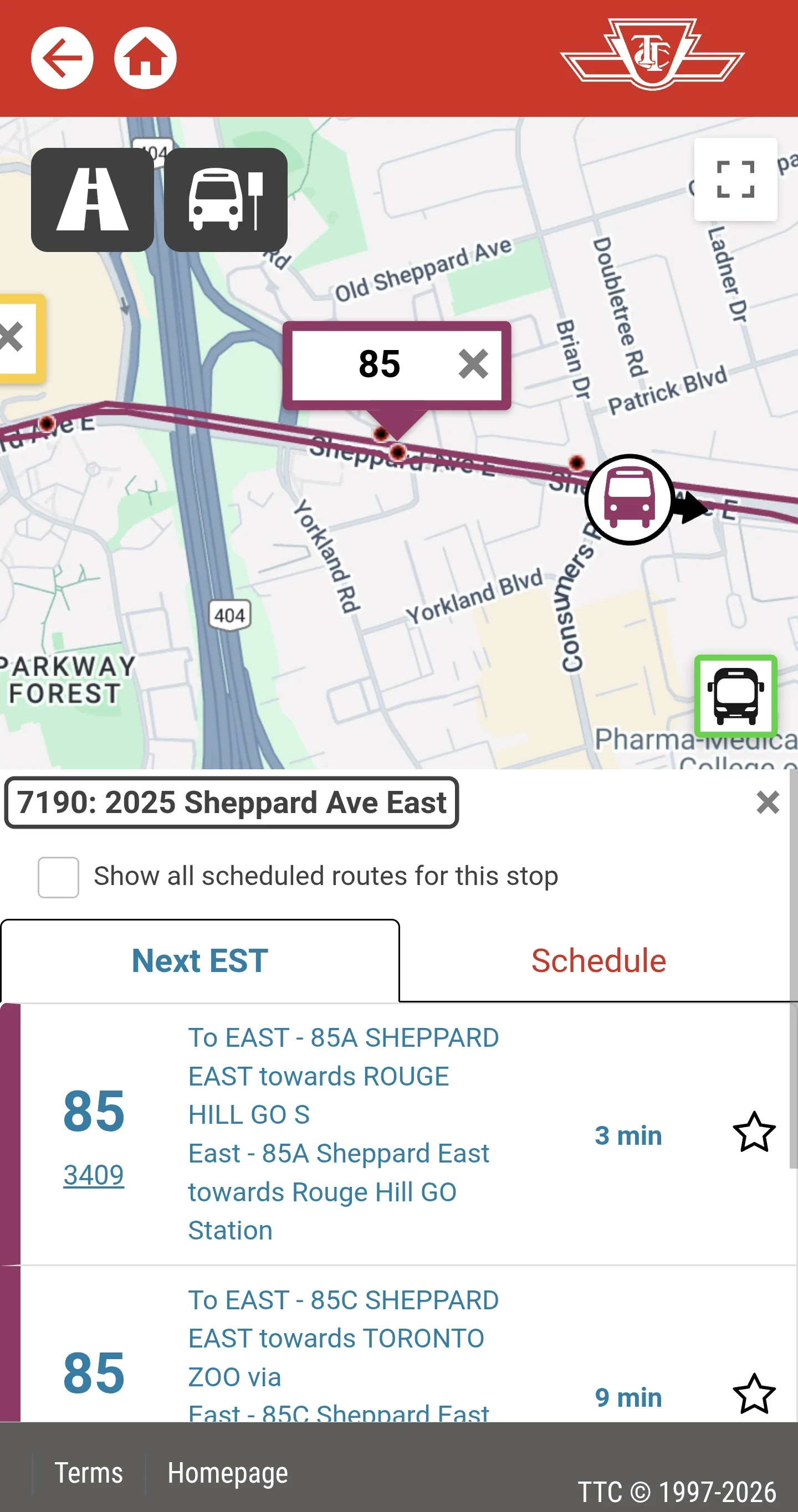
The official TTC real-time map has a lot of information. It shows live vehicle locations, direction, and ETAs for each stop. You can view multiple routes at once, but you have to choose those routes first.
The map uses Google Maps, so real-time traffic is available as a useful cross-check. The tradeoff is that map interaction feels a bit slow.
On mobile, the experience feels crowded. Popups include too much information for a small screen.
3.2 Transit
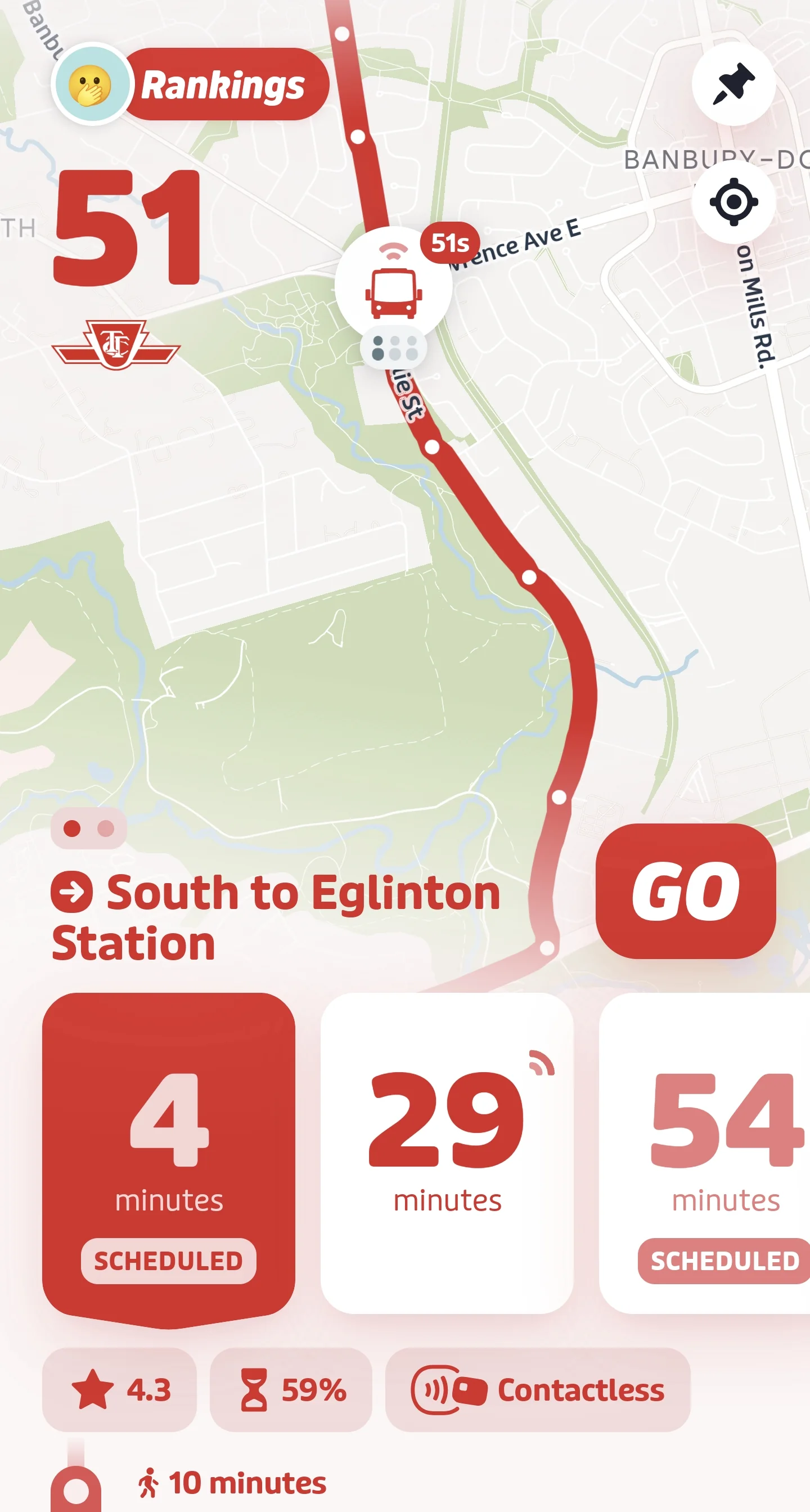
Transit is an official TTC partner app. One of its strongest features is automatic detection of unplanned bus and streetcar detours.
It shows route maps, live vehicle locations, and stop ETAs, and the interface is polished. Many features require a paid subscription.
3.3 Transit Now
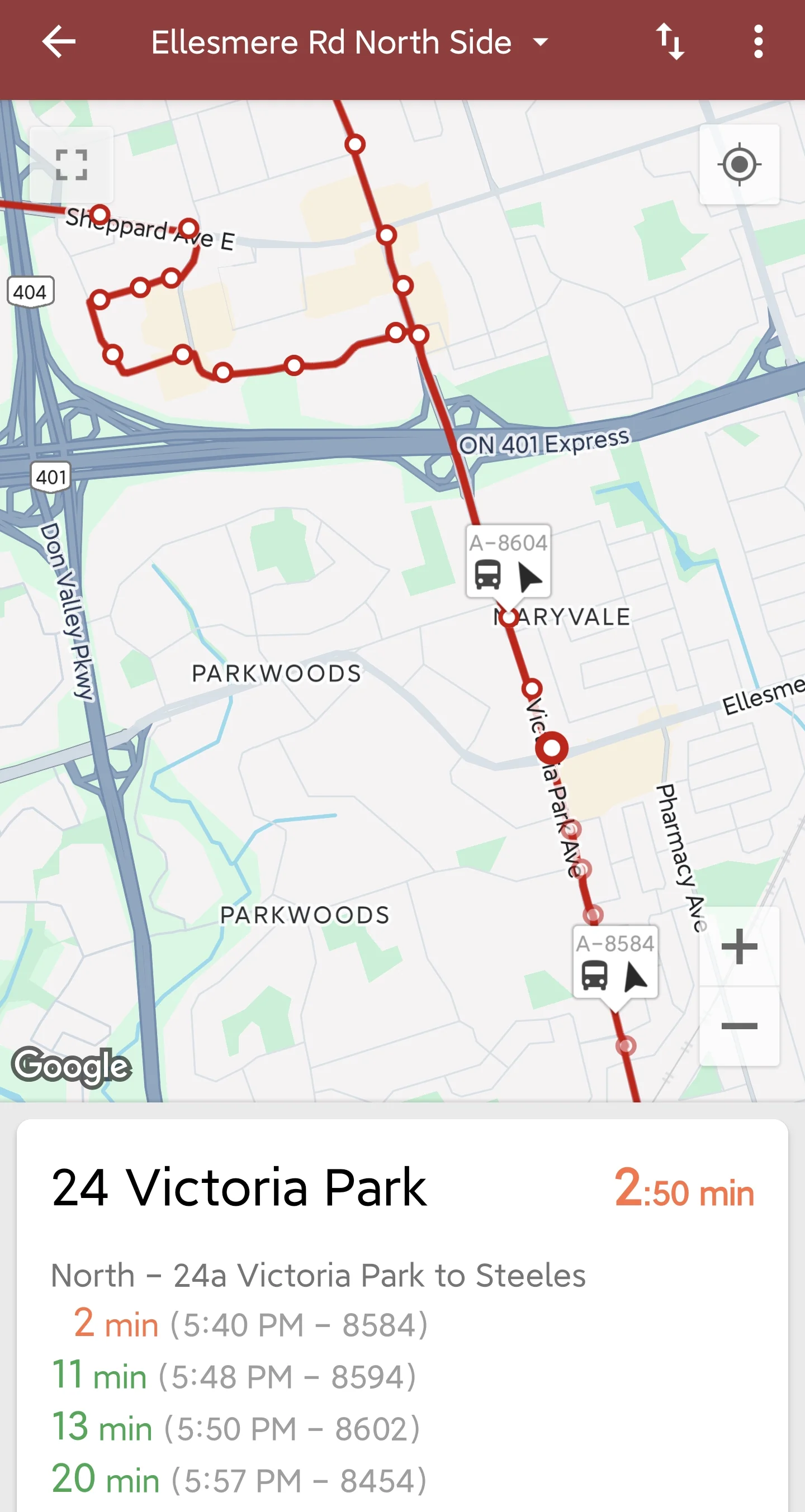
Transit Now shows route maps, live vehicle locations with direction, and expected arrival times for each stop. The interface is clean and feature-rich.
Like the TTC website, it uses Google Maps. Panning and zooming feel slow, there is no real-time traffic view, and I did not find a multi-route display.
3.4 My TTC
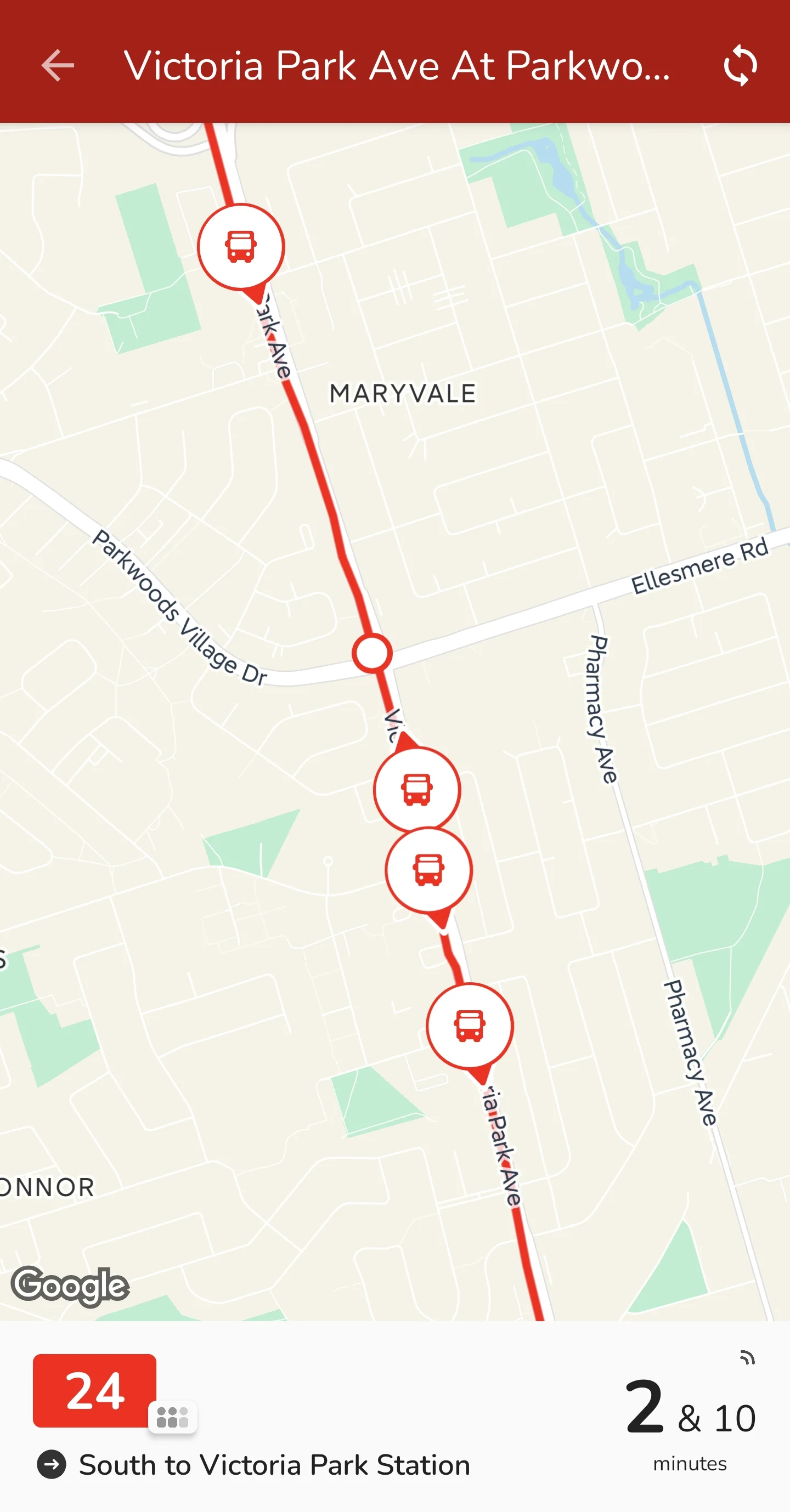
My TTC is functionally close to Transit Now, but after selecting a route I could not switch easily between different stops.
3.5 TTC Watch
TTC Watch shows bus stops, ETAs, and live vehicle locations with direction on a map. The base map appears to use Apple Maps, so there is no traffic view. You can display multiple routes, but you need to add them manually.
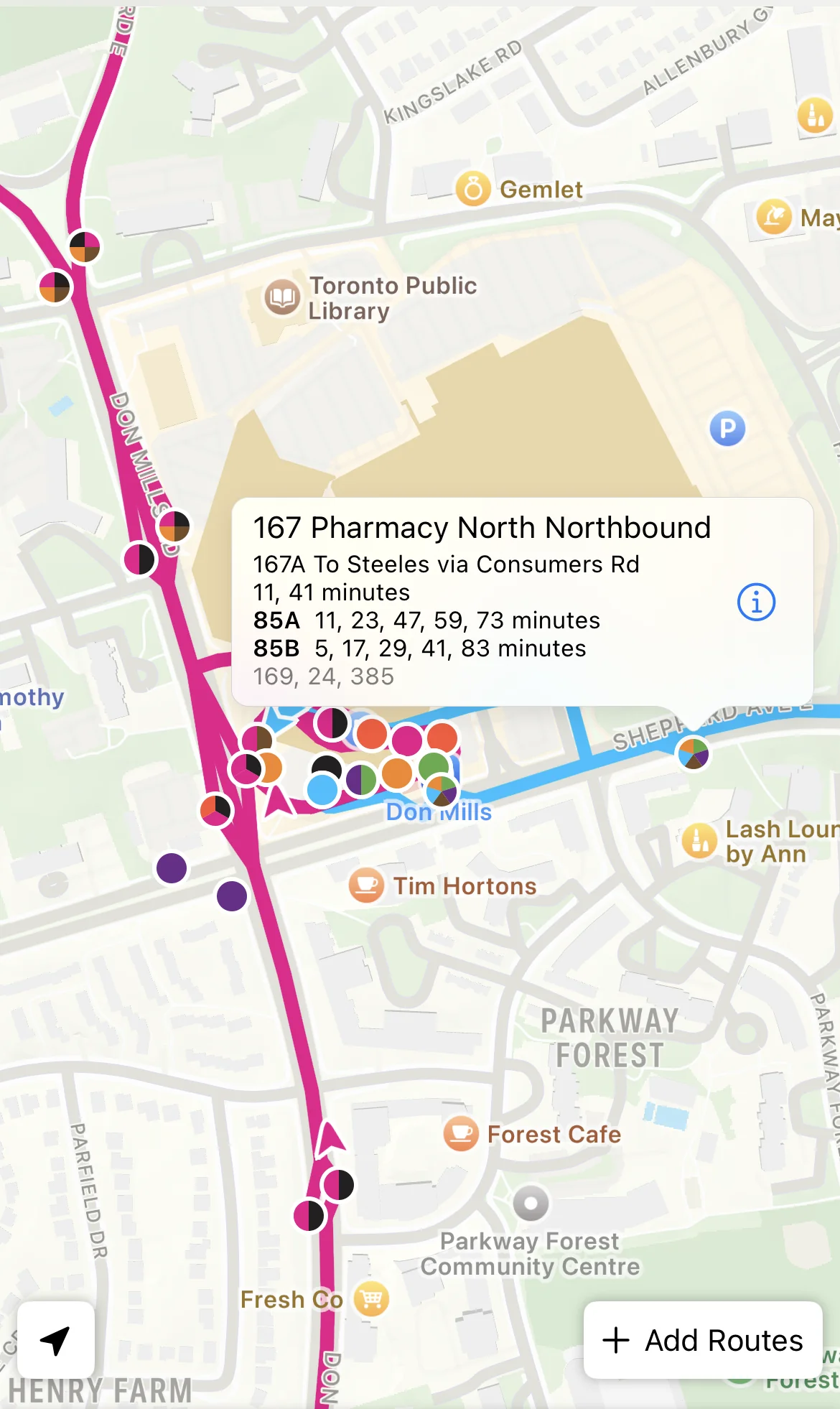
3.6 totransit
totransit shows live locations, with direction, for every bus on a selected route. I did not find stop ETAs.
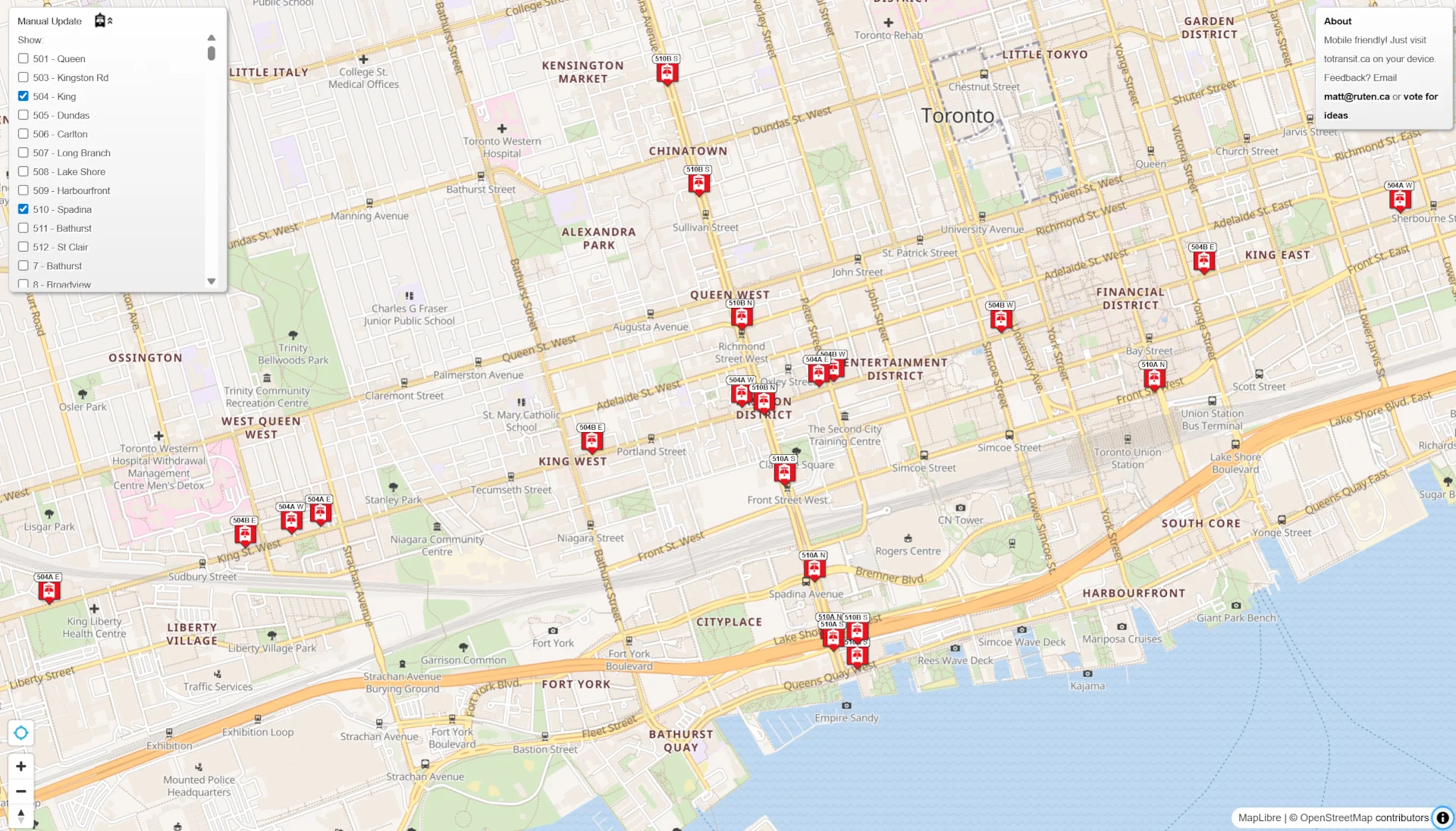
3.7 umo
umo shows route maps, live vehicle locations with direction, vehicle status such as "stopped," and stop ETAs. It is intuitive and easy to use.
The main limitation is the entry point. You first select a route and stop through a text interface. If a stop serves multiple routes, it still shows ETAs only for the route you selected.
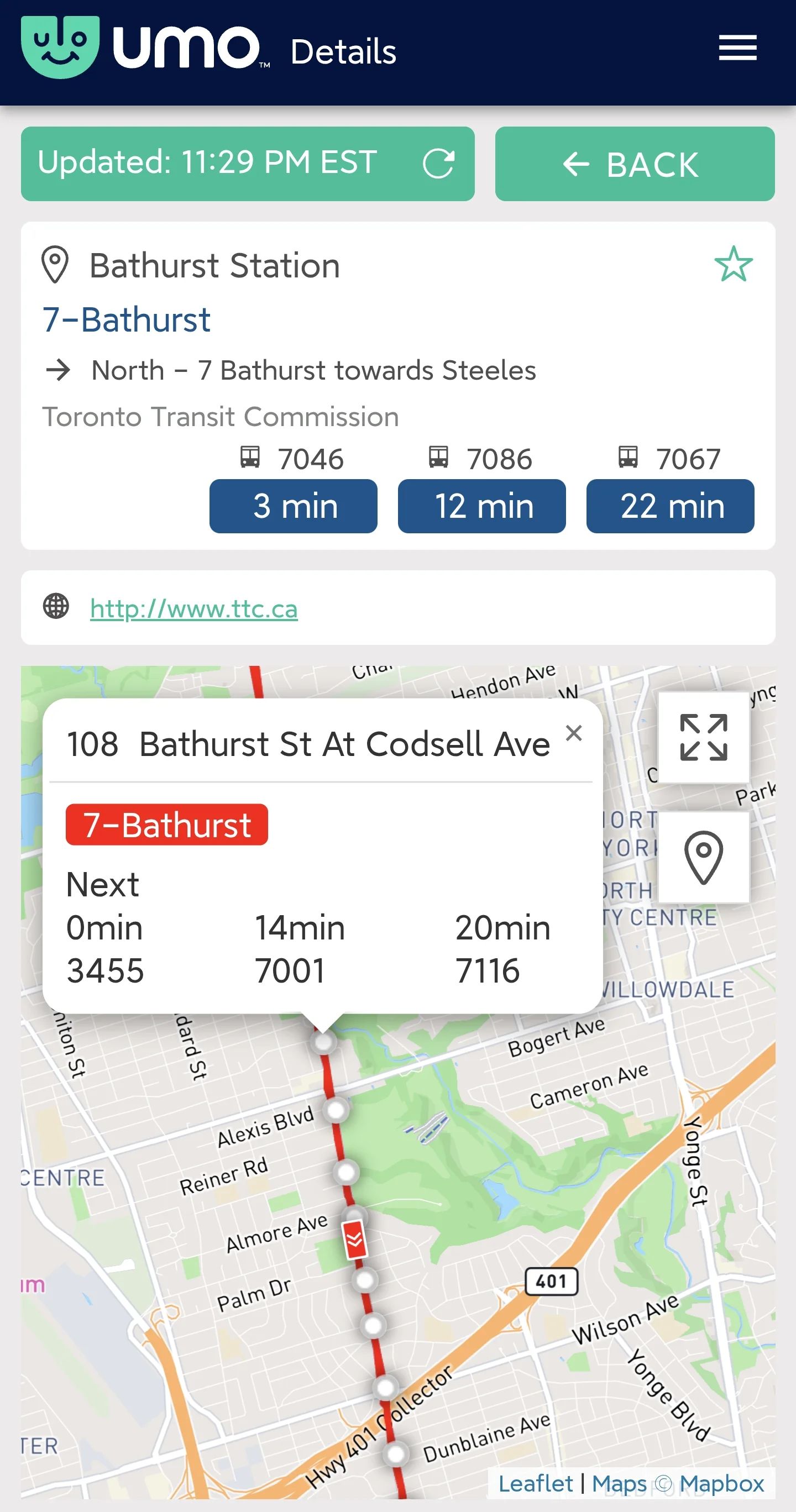
3.8 Citymapper
Citymapper is mainly a trip planner. You can click a stop to view ETAs, but it does not show live vehicle locations.
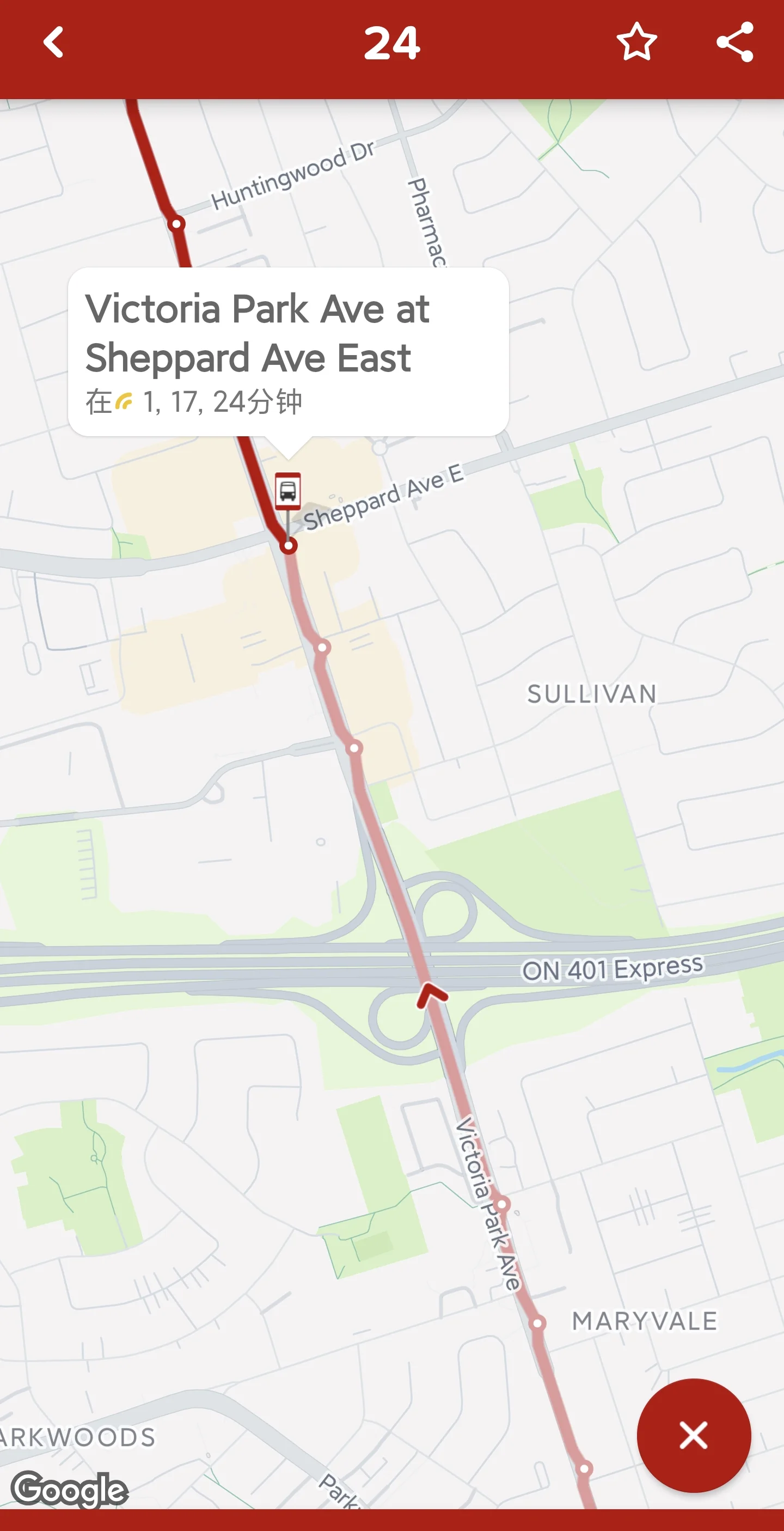
3.9 Summary
| App | Live Location | Direction | Stop ETA | Multi-route | Notes |
|---|---|---|---|---|---|
| TTC Website | ✓ | ✓ | ✓ | ✓ | Manual route selection, info overload |
| Transit | ✓ | Less clear | ✓ | ✗ | Polished, smooth interaction |
| Transit Now | ✓ | ✓ | ✓ | ✗ | Map loads slowly |
| My TTC | ✓ | ✓ | ✓ | ✗ | Slow map, awkward stop switching |
| TTC Watch | ✓ | ✓ | ✓ | ✓ | Manual route addition |
| totransit | ✓ | ✓ | ✗ | ✗ | — |
| umo | ✓ | ✓ | ✓ | ✗ | Text-first interface |
| Citymapper | ✗ | — | ✓ | — | Trip planning focus |
TTC riders already have a lot of mature apps to choose from. The pattern I kept seeing was route selection: in most apps, you pick a route before you can see the vehicles.
I wanted the opposite default. Open the map, use your location, and see nearby vehicles and stops right away. No route selection first.
That is the gap LiveBus is built for.
4. LiveBus features and positioning
4.1 Main features
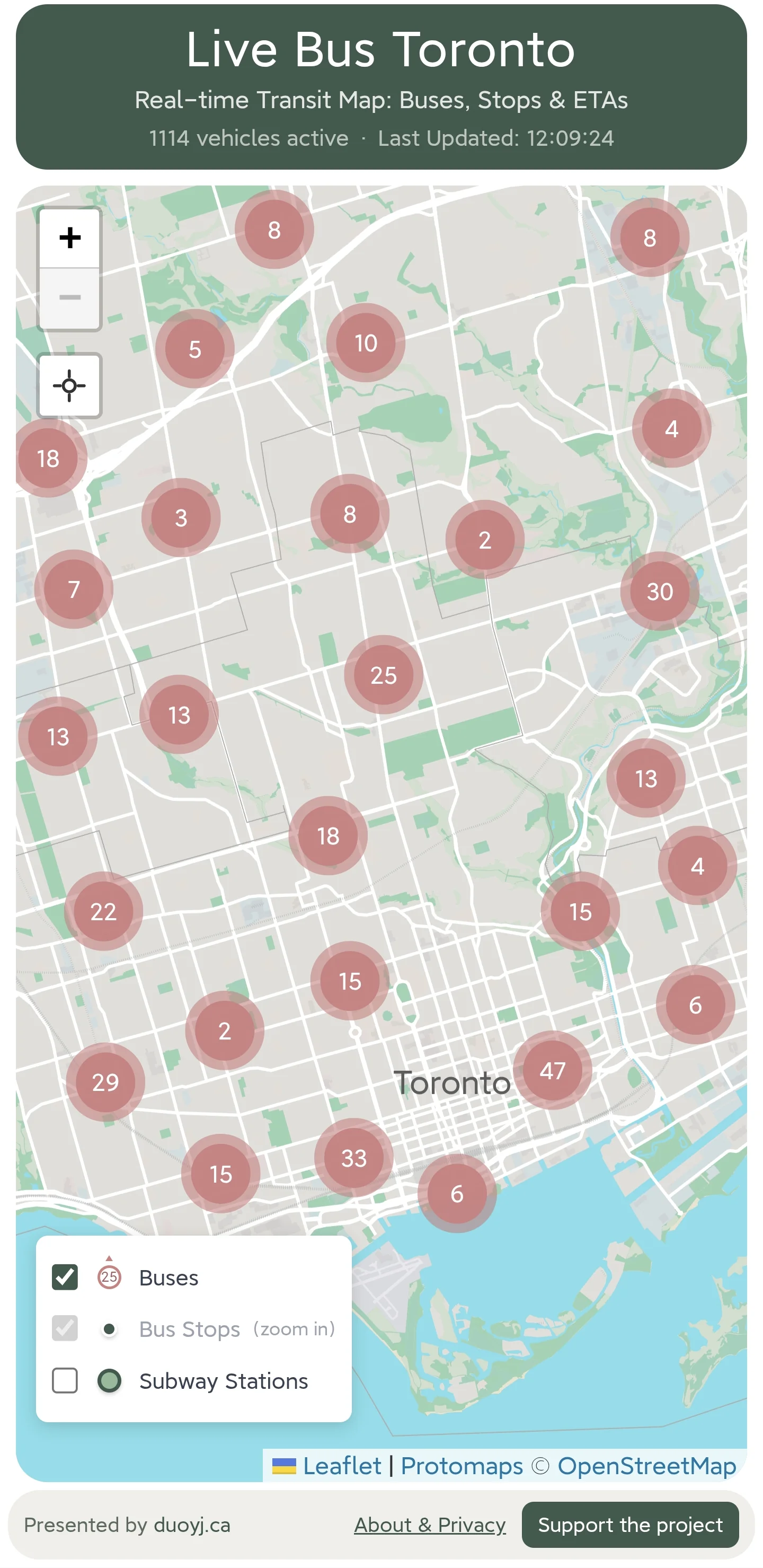
- City-wide live view: Open the app and immediately see all operating buses and streetcars across Toronto. No route selection. The full surface network is already visible, and LiveBus refreshes vehicle locations every 10 seconds.
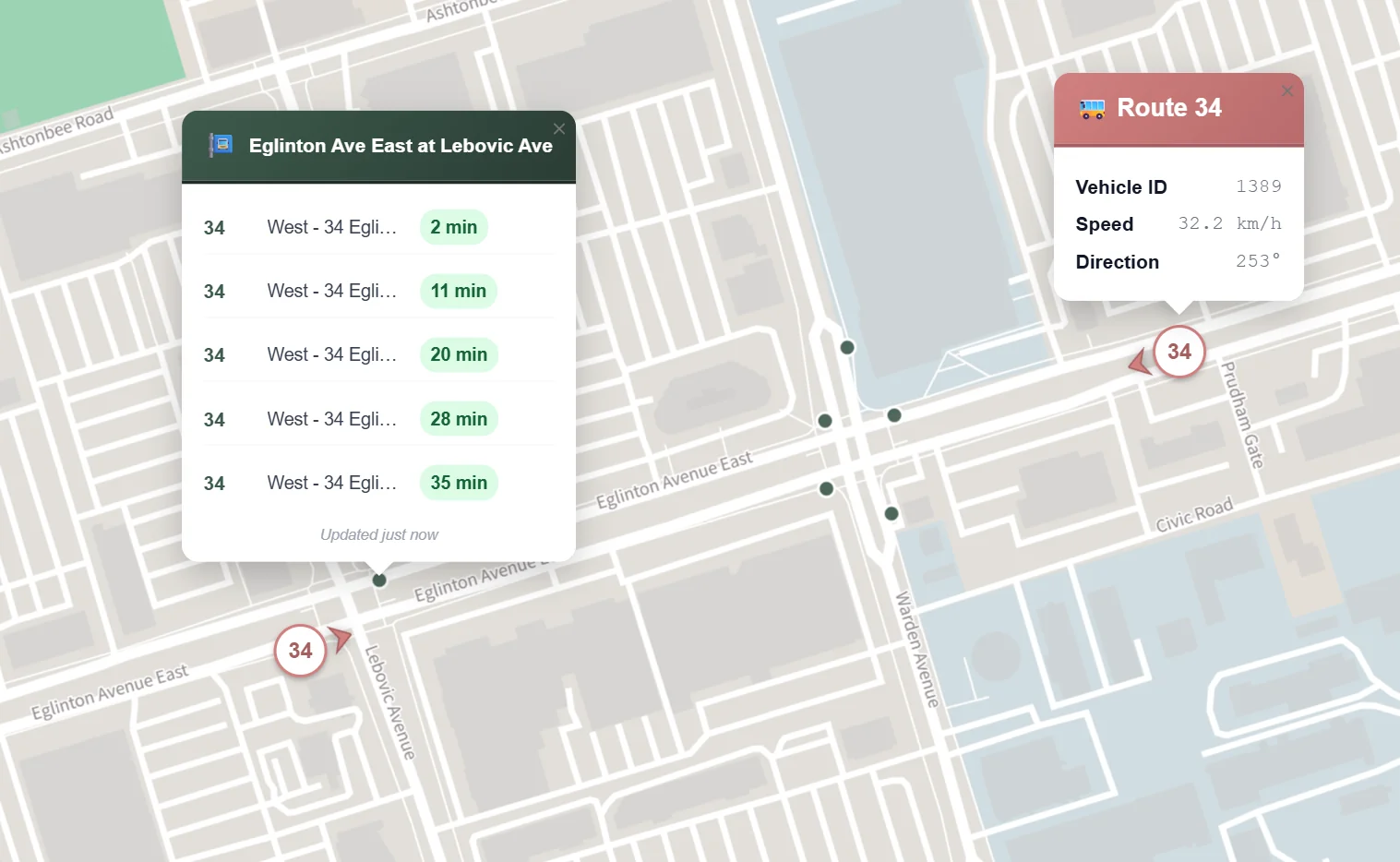
- Location-based display: After you grant location access, the map zooms to your area and shows nearby vehicles and stops. Click any vehicle or stop for details. By comparing vehicle locations with ETAs, you can make a better judgment about when your bus will actually arrive.
- Subway station layer: Subway stations are available as an optional layer for transfer planning and orientation. The layer is off by default, and you can turn it on whenever it helps.
4.2 Key interaction
LiveBus avoids nested menus. There is no route → direction → stop flow before you can see anything useful. Vehicles and stops are already on the map. Tap a bus, tap a stop, move across the city, and cross-check what you see. The main interaction is smooth zooming, panning, and lightweight popups on tap.
4.3 What LiveBus does not do
-
Trip planning: Google Maps and TTC's Triplinx already handle this well. LiveBus focuses on "where's the bus," so I am not duplicating their work.
-
Service alerts: TTCmap is strong here. If a stop has no ETA and there are no vehicles nearby, that is usually when you would check TTC or TTCmap for disruptions. For now, that triggered workflow is enough.
-
Route display: Showing the operating route after you click a vehicle would be useful. TTC has many branch routes, though, and a weak implementation could mislead users. I am saving this until I can handle the data properly.
4.4 Target users
LiveBus is not for every transit task. It is mainly for two groups:
-
People who think in maps: If you prefer maps over text menus, LiveBus should feel natural. You can zoom and pan until the situation makes sense.
-
Commuters who already know the routes: If you know Toronto's streets and your usual commute, you often do not need trip planning. You just want to know where the vehicle is. For people new to the city, LiveBus works better as a companion to planners like Google Maps.
5. Data sources
5.1 Transit data
-
Live vehicle locations: I use Vehicle Positions, the real-time vehicle feed from the TTC website.
-
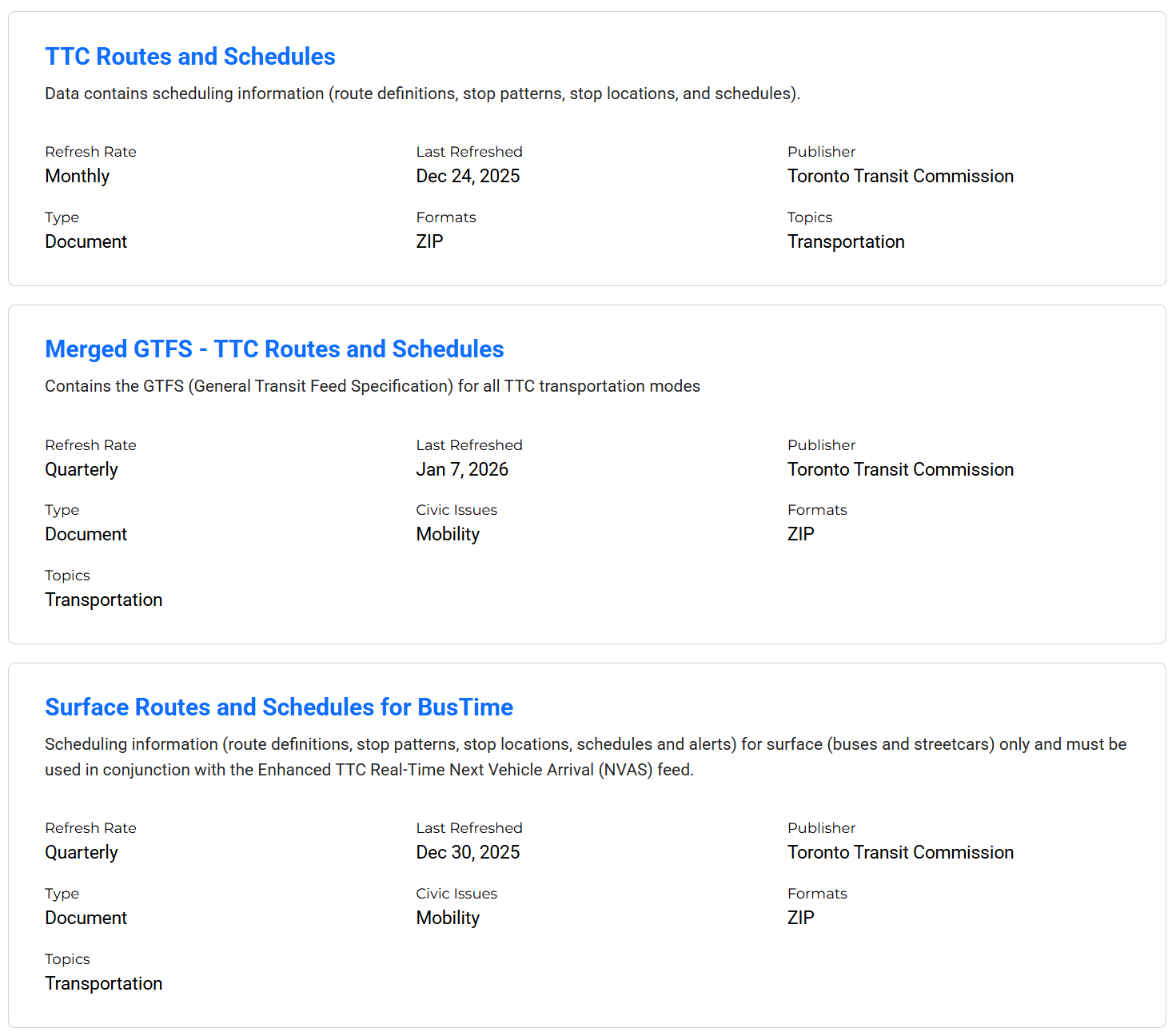
Stop locations: TTC publishes stop locations in several forms. I chose the most streamlined source, TTC Routes and Schedules. The stop data is hardcoded in the app and updated monthly. I can also update it manually when needed.
- ETAs: I use the API from Umo IQ, formerly the NextBus API. It is simple and supports per-stop queries. The downside is that it is third-party data, so stability may not match an official source. I may switch to TTC official data later.
5.2 Map base layer
I noticed that TTCmap's base map had moved from Google Maps to Protomaps PMTiles. That self-hosted approach fit LiveBus's lightweight direction, so I followed it: I downloaded map tiles, hosted them on Cloudflare R2, and saw a clear performance improvement.
For the same reason, I built the map interface with Leaflet.
6. Development notes
6.1 Real-world validation
In daily use, the app has been stable, quick to respond, and prompt with updates. That matches the design goals I started with.
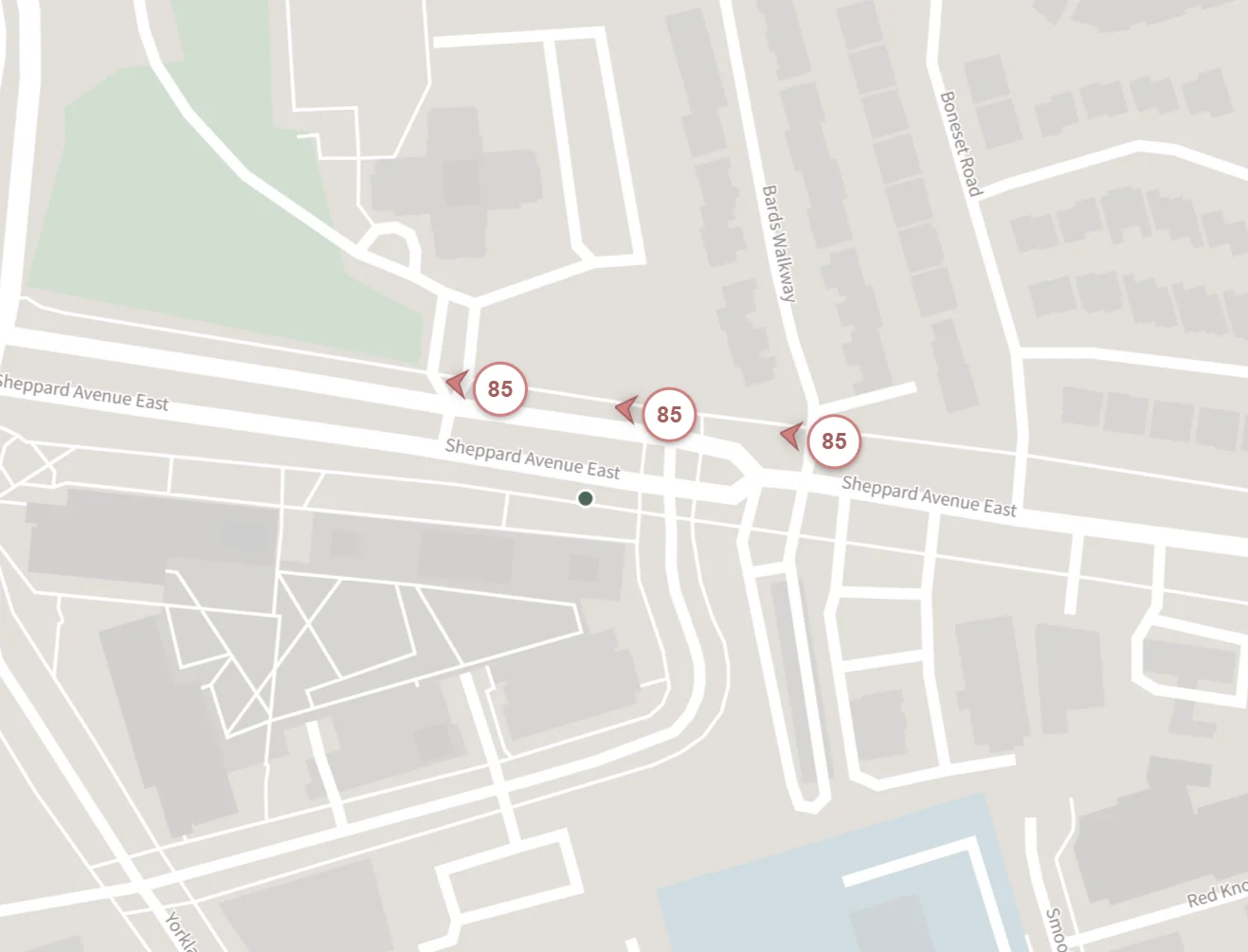
It has also helped with a few odd real-world cases. In the screenshot below, the ETAs say three buses are arriving almost at the same time. At first glance, that looks like a data problem.
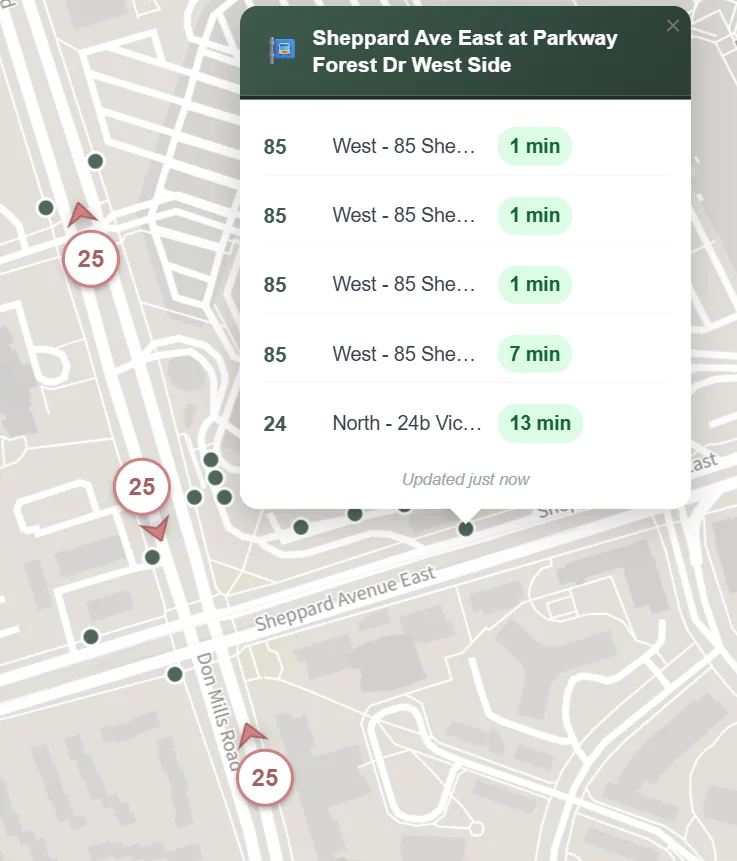
But when you check the map, the three buses really are close together.
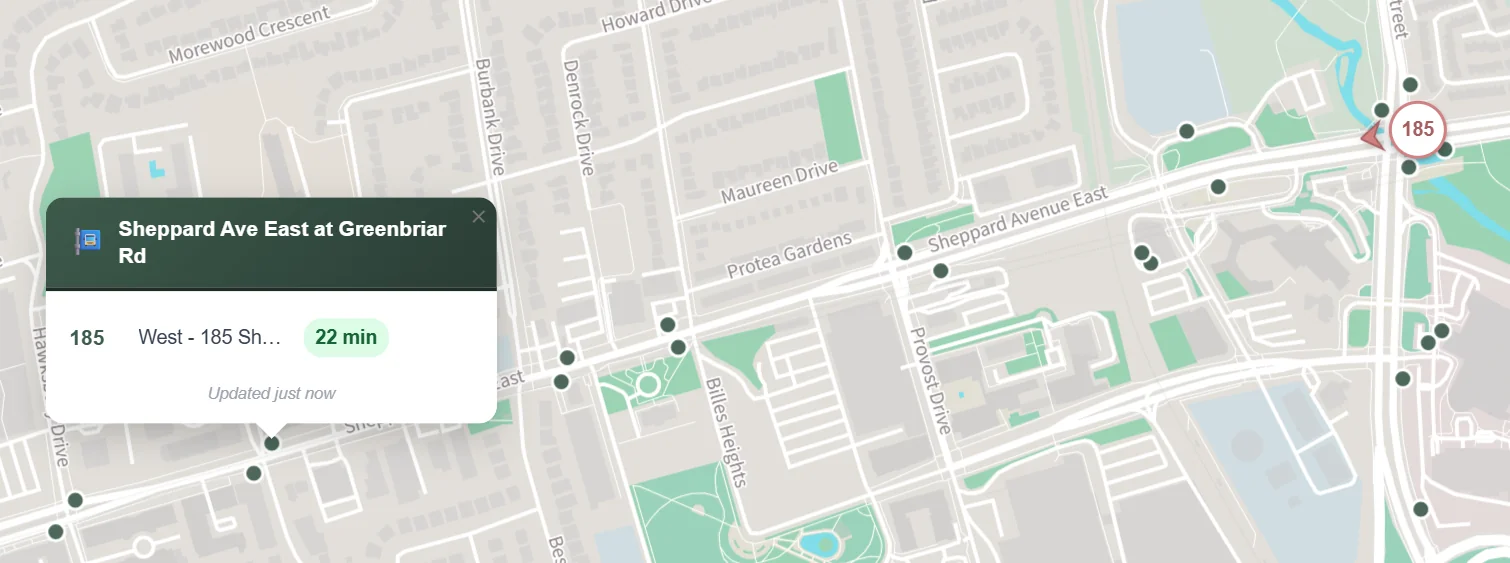
Sometimes the vehicle data and stop prediction do not line up. In the example below, a bus is not far from the stop, but the ETA says 22 minutes. Something is clearly off. This is where cross-checking helps: when the prediction looks wrong, you can make your own judgment or check the TTC website for disruptions.
I will keep working on the data limitations and optimization issues.
6.2 Avoiding data misuse
Open data still needs to be used carefully. To avoid putting unnecessary load on source servers, LiveBus uses tiered caching. Vehicle locations are cached for 10 seconds on the server, and ETAs are cached for 10 seconds too. During that window, user requests are served from cache instead of hitting upstream servers. For vehicle locations, simultaneous user requests are also collapsed into one upstream request.
6.3 Initial location speed
When you first open LiveBus, the browser may need 3–5 seconds to get your location. This is especially noticeable on phones because GPS needs time to warm up. Instead of making you stare at a loading state, LiveBus first shows a wide Toronto map, then jumps to your area once your location is ready. Later, I may estimate location from network information first, then refine it with GPS.
7. Future outlook
7.1 Data and feature improvements
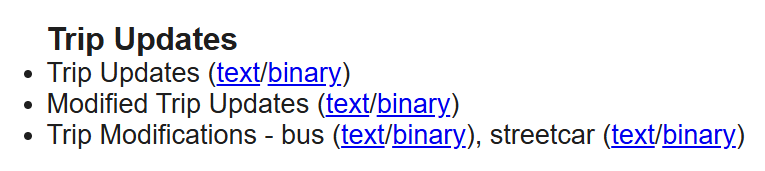
ETA data: Stop ETAs currently come from Umo IQ. I am not sure yet how its accuracy compares with TTC official data. TTC provides rich GTFS-RT data, including Trip Updates, Modified Trip Updates, and Trip Modifications. I plan to explore a move to official sources.
Route display: Showing the operating route after clicking a vehicle or stop would be useful. Once I am confident in the data, I will consider adding it.
Occupancy info: TTC provides real-time bus occupancy. When several buses arrive close together, occupancy can help you pick the less crowded one. I plan to add this.


7.2 Interface polish
LiveBus still has details to clean up: vehicle and stop IDs, typography, and popup layout. These are small changes, but they can make the app feel much clearer.
8. Conclusion
LiveBus came together because TTC and the City of Toronto publish useful open data, and because projects like TTCmap showed how much a small focused tool can do.
People read transit information differently. Some prefer lists. I prefer maps. I like seeing live vehicles and stops together, because it helps me understand the situation quickly.
I built LiveBus largely for myself, and I use it often in my own commute. If it helps other TTC riders too, that makes the project even more worthwhile.